Windows desktop widgets
Desktop widgets for Windows 11 and 10.
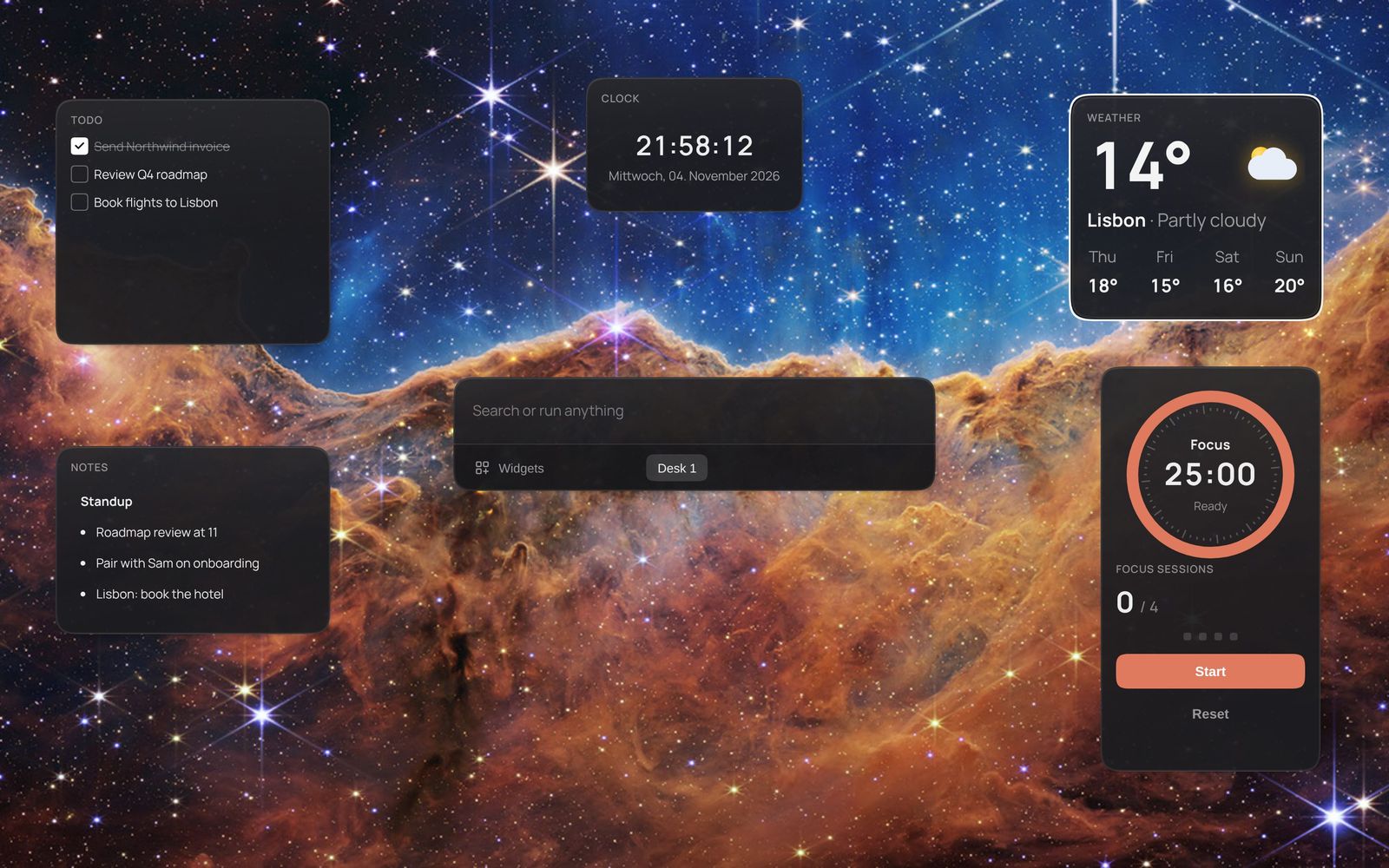
Windows 11's own widgets live on the Widgets board, a panel that slides in from the side of
the screen — they do not sit on your desktop. Kavibay puts widgets where you can arrange them:
on one transparent layer over your desktop, next to a command palette, a double tap of
Ctrl away.
Widgets that come with it
31 widgets ship with the app. A few of them:

Clock widget
Local time with optional seconds and a timezone. Add one card per city.

Weather widget
Current weather and the next days for a city you choose, from Open-Meteo — no API key needed.

Spotify widget
Now Playing shows what is playing — Spotify included — with play, pause and skip. Spotify Playlists lists your playlists and opens one.
To-do widget
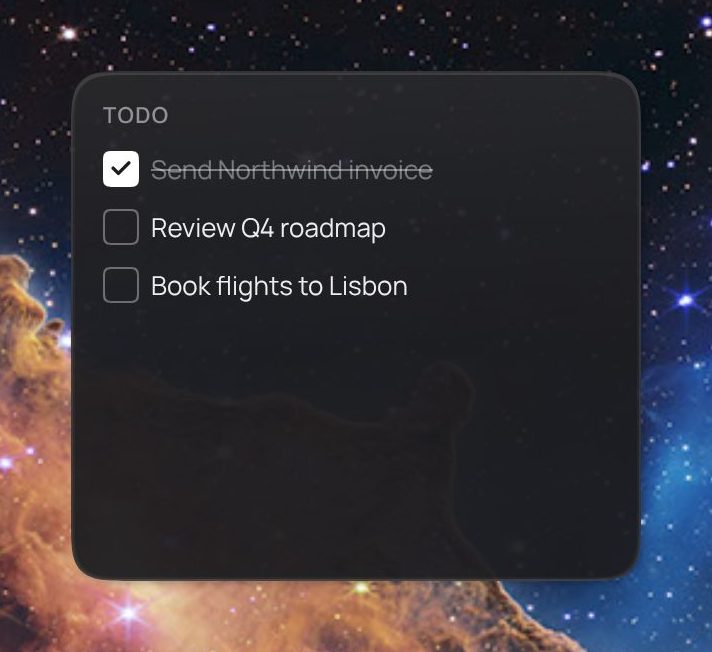
A nestable checklist: drag to reorder, edit inline, check things off.
Notes widget
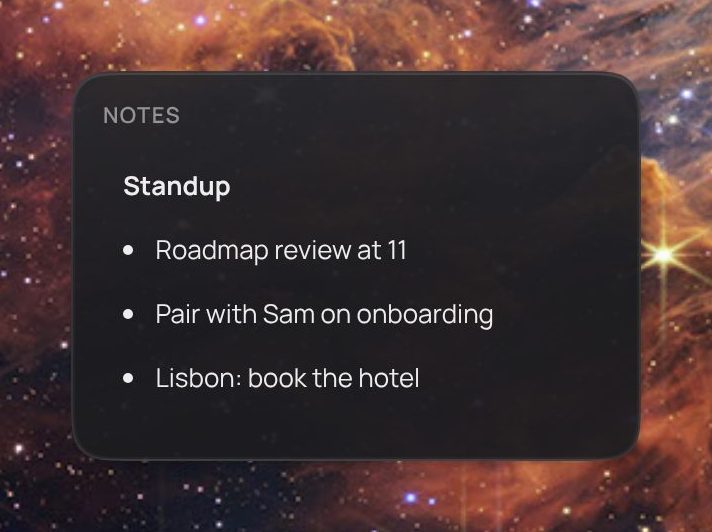
Sticky notes with rich text — headings, lists, the meeting you are about to forget.

Pomodoro widget
Work and break sessions that keep ticking while the desk is hidden.
The rest: Alarm, Calculator, Calendar (Google), Clipboard history, Color Picker, Emoji Picker, Focus Tracker, GitHub Actions, Image, Launcher Buttons, Moodist ambient sounds, Single Purpose AI, Snake, Snippets, Stocks, Stopwatch, System Info, tado°, Time Tracker, Timer and more — the full list.
Spotify Playlists, Calendar and the other account-based widgets connect once in Settings. In version 0.1, Spotify and Google Calendar ask for a Client ID from their developer console; Now Playing needs nothing.
How they sit on your desktop
- Double-tap
Ctrlto show the desk and the palette; again to hide it. - Pin the widgets you want on screen all the time. They stay above your windows.
- Hold
Ctrl+Spaceto peek at the rest, and let go to get your screen back. - Several desks — one for work, one for the evening — switched with
Ctrl+Shift+1…9. - Duplicate any widget: two clocks, two cities, separate settings.
To add one, open the palette, type the widget's name and press Enter.
When the widget you want doesn't exist
Describe it. The Widget Wizard writes a widget from a sentence, previews it in a sandbox, and Save puts it on your desk. It uses your own Anthropic or OpenAI key, a few cents per widget — or Claude Code and Codex over MCP. Coming from Rainmeter? See Kavibay as a Rainmeter alternative.

Questions
How do I put widgets on my desktop in Windows 11?
Windows itself keeps widgets on the Widgets board. For widgets you place yourself, install a widget app — with Kavibay: install it, double-tap Ctrl, type the widget's name, press Enter, and drag it where you want it.
Does it work on Windows 10?
Yes. Version 0.1 supports Windows 10 and 11.
Is it free?
Yes, and open source. No account, no subscription.
Can widgets read my accounts' data safely?
Keys and tokens are encrypted at rest with Windows DPAPI and used only inside Kavibay's Rust backend. Widgets get the data, never the key.